Thursday, 2 May 2013

Scene 3

To set up scene 3 I needed to create an animation with the neon lights befor I merged with the police building.


I have created a loop setting the a key frame at 0, then move to 10 on the timeline and rotated the text 180 degrees, then repeated this at 20.

Then by using the curve editor and selecting the param curve : relative repeat


this created a loop on the video


This was imported into the police building file, making sure I selected the merge option and group the elements of the light. once imported I made a copy and changed the text.
 
 
This screen shot shows the two neon and the imported vehicle.  I added two target cameras, placing the target onto the points that I wanted to be within the camera view at all times.  By placing one target inside the building I was able to move the camera and view the building where ever it was moved too.
 
I had problems with the vehicle attached to a spline on a constraints path, so I created a dummy and  attached that to the constraint path, then attached the vehicle to the dummy.  This meant that I could animate the vehicle within the keyframes without effecting the path.
 
I also decided to change the direction of the vehicle, so changing the story board,  I felt that the scene worked better with the vehicle coming in from above and moving out of shot lower down the building, this also meant that I could include the neon within the animation.


I created a dummy from the helpers toolbar drew a cuboid and named this.  Created a path constraint with the dummy and the spline. Then attached the vehicle to the dummy.  I was able to move the vehicle to where I wanted knowing that this will still follow the path.

To place the dummy (and vehicle) on to a selected point on the spline I selected the object with the path constraint in this case the dummy, then under the motion, path parameters changed the '% along path' option, once in place creating a key frame.  This works, moving the dummy with the move tool means it will jump back and forth when trying to animate.

As I have fine tuned the camera movement, selecting the best camera settings to give the view that I wanted, I have know created a scene show casing the building and the neons, now to include the vehicle within the scene.

I have decided to render smaller parts of this whole file this means that I can manipulate the vehicle within these smaller time spans. As I will not be changing the camera angles I should be able to bring the files together within PremierPro. I set up the vehicle and rendered these scenes and brought them together in PremierPro

For the background I tried various things using this bitmap image but they didn't work


Source of gif : milkshake.com,[online] available at : http://mlkshk.com/p/2IB1 accessed 30/4/2013
 
 
using the dome or plane but the bitmap would not fit did not give the right effect.
 
Therefore I decided to use an environment map on the background using the same bitmap as scene 1 and 2, I felt this worked better.


Monday, 29 April 2013

Premier Pro for avi files

Scene 2

For scene 2 -  I had to create a new building, add a dome for the sky and import the spinner vehicle

I had to flip the image on the dome to show on the inside- in editable poly uner edit polygons.


I practised with lighting using the omni lights to create some shadows on the buildings, I wanted a shadow of the vehicle to show on the building as it went accross but my vehicles would have caused too large a shadow.


Testing the lignting using omni and atmospheres and effects using selecting volume light
Attached an omi light to the vehicle


I was not happy with the effect so I added a floor to help capture the light, moved the lights into a better position and made the dome smaller to get a better effect from the map.


File Structure

I restructured my files for the final animation to allow me to know where images for maps, sound files and video files can be accessed without confusion.


I have place the jpg files in the texture folders, this means file links are not lost on importing/merging  models into new scenes.

Thursday, 25 April 2013

Blinking lights

blinking lights
To create blinking lights to loop on the car and import that repeated animation into another file I followed this tutorial:
CJCA915, Chris's Corner, Blinking Lights in 3ds Max, [online]available at


To create this blinking effect the lighted areas on the vehicle were given the brightest settings and  key frames were created on the time line at intervals of 20 seconds, starting at 0.


Going back to the timeline and moving to the 10 second interval the settings were changed on the opacity within the motion editor for the mode that was assigned to the lighted areas on the vehicle.  A key frames was then created - this was then repeated for each further 20 second intervals ie: 30, 50 etc.


I feel that this is not a very good way of producing a flashing light as the opacity setting will allow the background to be seen through the selected area. 

But for this video the vehicle is moving too fast for the viewer to see the opacity created on the lighted areas and therefore it is not that noticeable. 


Slate Material Editor


I have been using the slate material editor with more confidence along with the select by name option on the toolbar to assign different maps to named parts in the scene.

I


Reactor


To use the reactor option : bring up the reactor toolbar (right click on edge of main toolbar) or click on the hammer and choose reactor
On the reactor tool bar there a many option to play with the first is using the rigid body collection (building blocks)
I have drawn 2 rectangles and 2 spheres the aim is to have the spheres fall and run down the planks, the larger sphere will react differently to the smaller sphere.
Select the rigid body collection and on the command toolbar add the objects that  will react together.
On the property editor select an object and add different properties to it.
I added unyeilding to the rectangles this stops them from moving when reacting with the objects.  To the spheres I added bounding sphere, the larger ball had a mass of 5 and the smaller a mass of 15, this created more of a reaction within the larger sphere.
The animation can be previewed by clicking on the last but one button (preview animation)


As you can see the objects reacted differently to the surroundings.

Tuesday, 9 April 2013

Creating scene one landscape and explosions

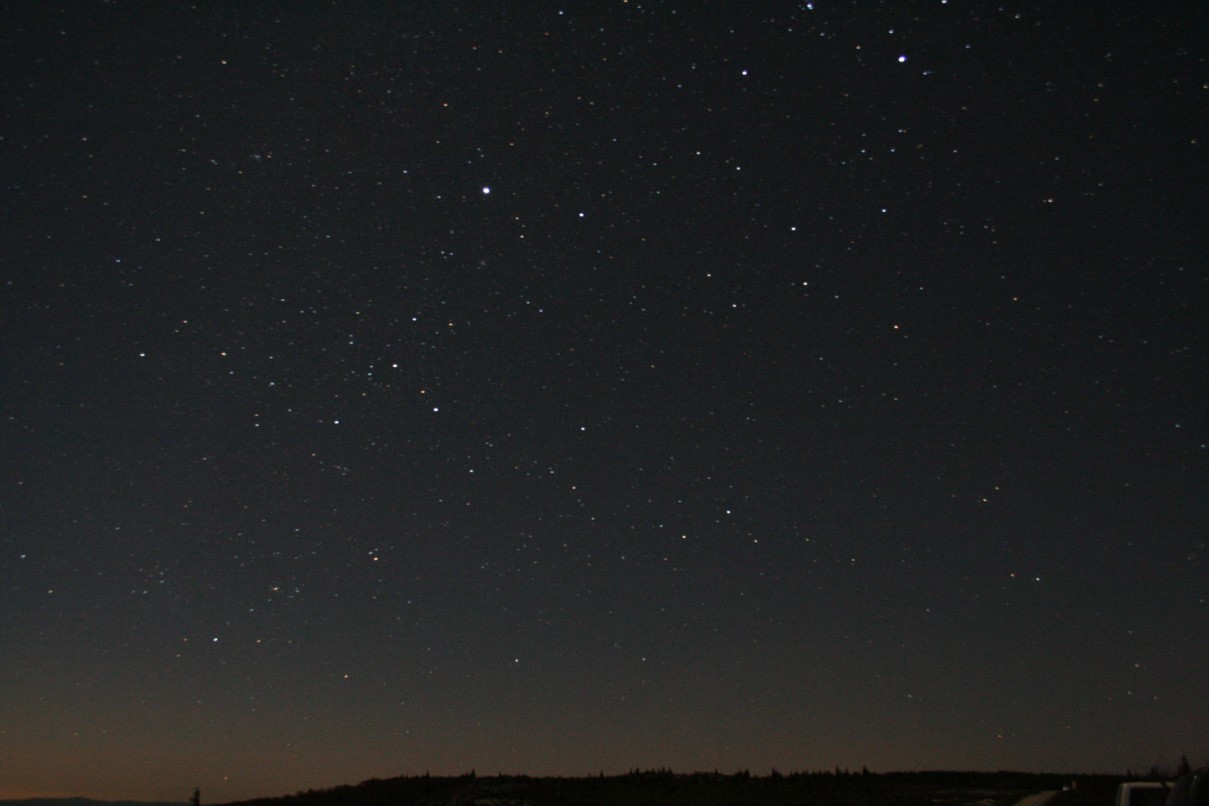
I have found a night sky jpeg that I could test the enviroment map with from wikimedia commons

 
Wikimedia Commons, 2006, File:Mountain night sky - West Virginia - ForestWander.jpg, available at : http://upload.wikimedia.org/wikipedia/commons/3/3f/Mountain_night_sky_-_West_Virginia_-_ForestWander.jpg, Accessed 21/3/2013


By creating a sphere and deleting half, then deleting the bottom part to give a straight line to act as a horizon line, a bitmap sky scene could be assigned to it


The bitmap image automatically shows on the outside for the inside the flip option is required.

For this scene I created some cones to act as a sort of chimney which will have explosion from the top(above)
(below) a spline was created for the vehicle to follow on a path constraint.
This was extremely difficult to draw as a free hand object, but I was able to manipulate the line into a more curved shape.


For the explosions I followed my tutorial notes see explosions and fire.


I have added a camera to view the render and add a slightly pan to give more depth to this part of the animation


the bottom two views are on the left camera 1 and on the right perspective.

I have changed the animation to set the speed of the asteroid and added a pan to camera 1.

My output settings  are HDTV 1280 x 720 25 fps